Block distracting apps on your iPhone.
FocusTime helps you stop doomscrolling. Start a focus session, schedule your focus time, or let FocusTime step in as soon as you keep scrolling too long. No loopholes.
Free · iPhone with iOS 17.4 or later · also on Apple Watch

How FocusTime keeps you on track
App LimitsPremium
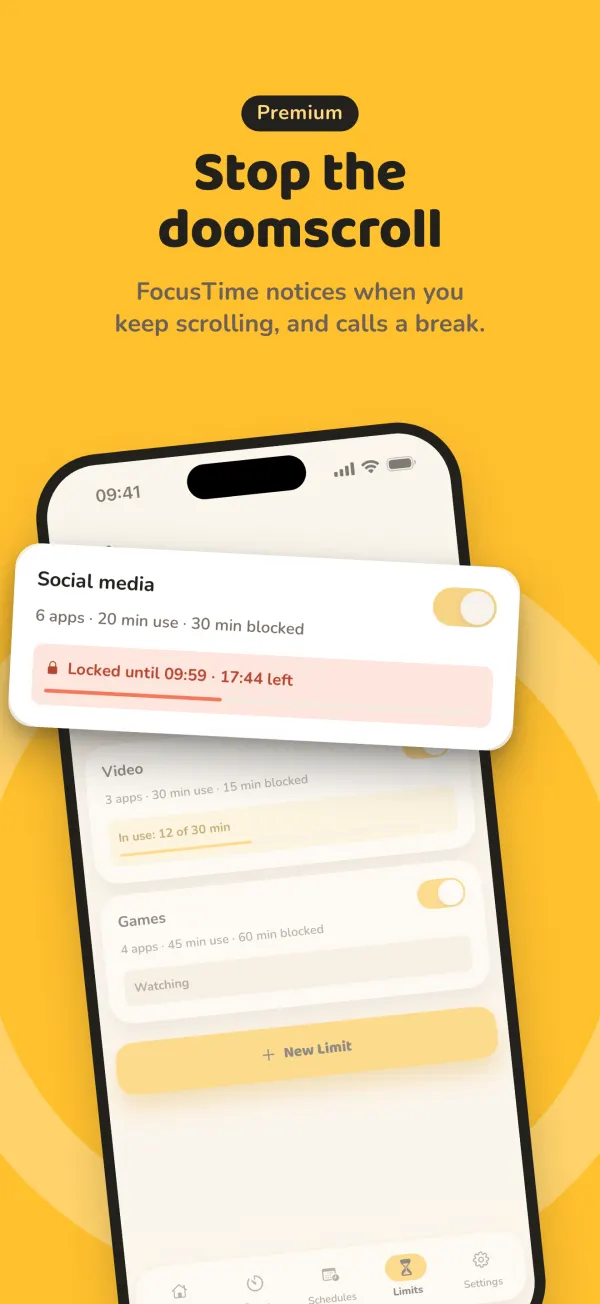
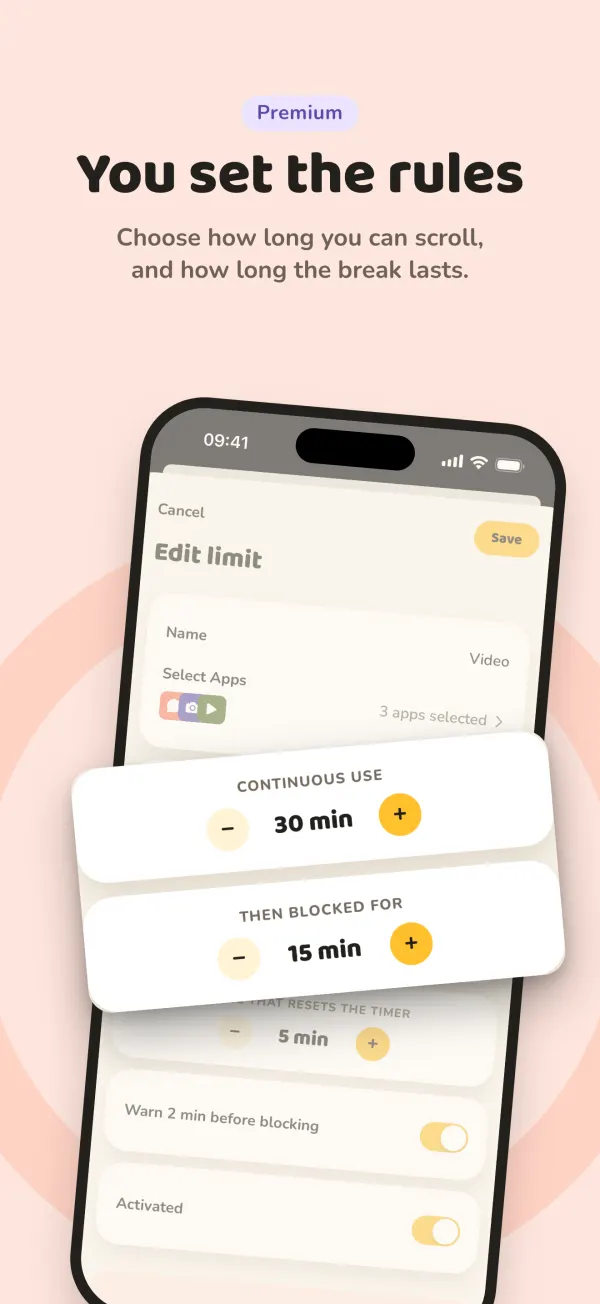
Use your apps as usual. Keep scrolling too long without a break and the app locks for a while. You choose the minutes, how long the block lasts and how long a pause has to be to reset the count.
Focus sessions
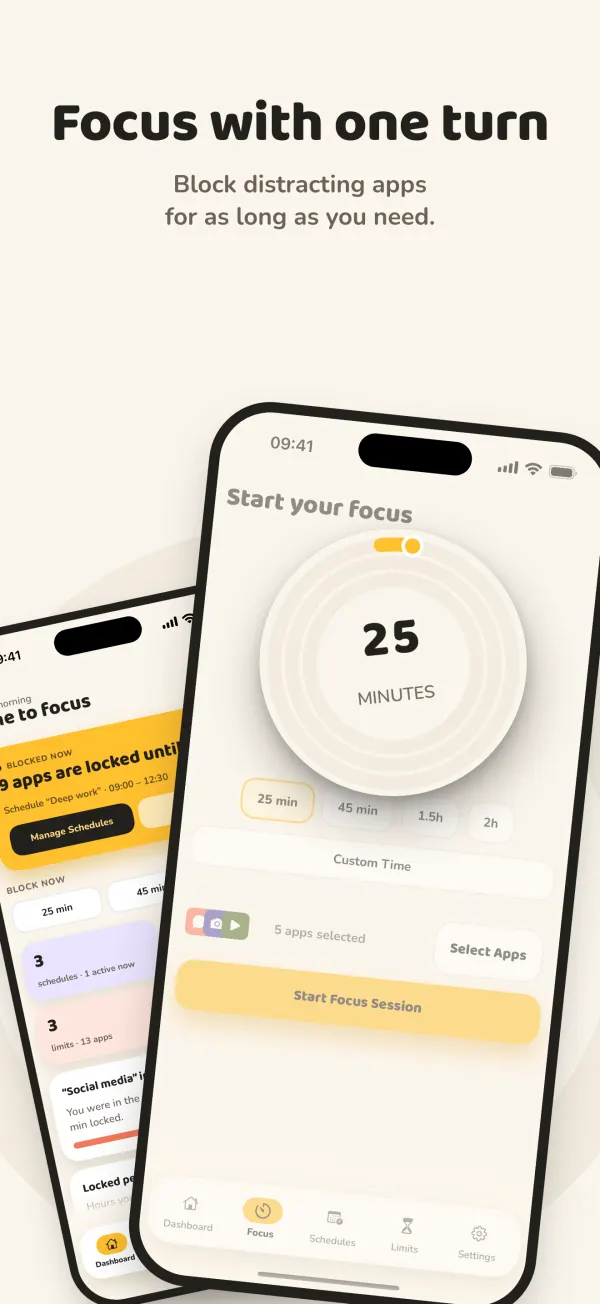
Pick the apps that distract you, turn the dial and start. They stay blocked until your session ends: up to 115 minutes for free, up to 12 hours with Premium.
Schedules
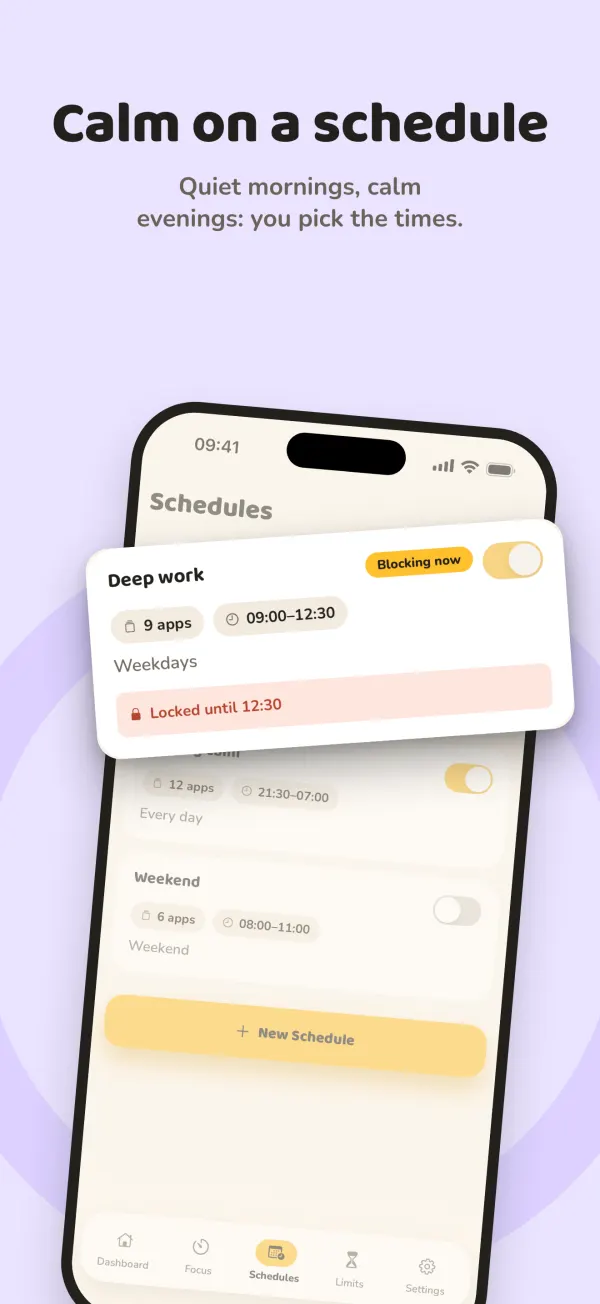
Mornings without social media, evenings without games, a quiet bedtime. Set the days and times once, and your apps lock themselves.
A block is a block
No “just five more minutes” button. Once an app is blocked, it stays blocked until the time is up. That’s the point.
On your Apple WatchPremium
Start a focus session from your wrist and see the time left on your watch face. On Apple Watch Ultra, one press of the Action button is enough.
Your week at a glance
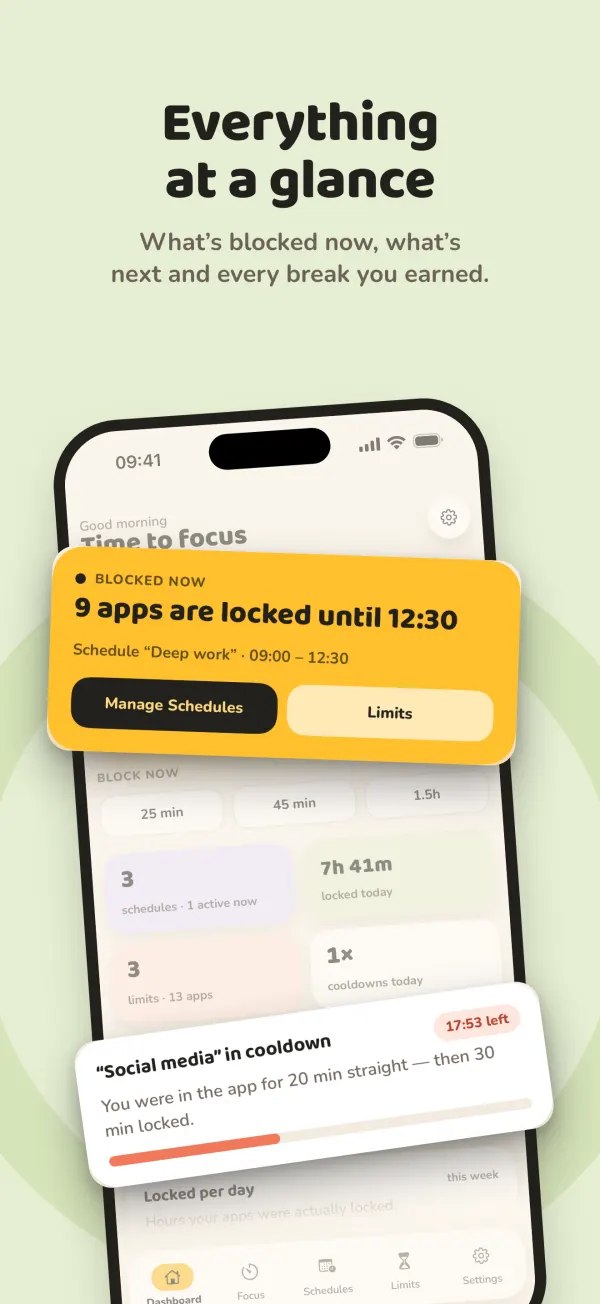
The dashboard shows what’s blocked right now, what’s coming up next and how much time your blocks covered this week.
FocusTime blocks apps through Apple’s Screen Time. You choose the apps in Apple’s own app picker.
See it in action
FocusTime or Apple’s Screen Time?
Screen Time is already on your iPhone, and FocusTime builds on it. The difference is in how strictly and how smartly it blocks.
| Topic | Screen Time | FocusTime |
|---|---|---|
| What the limit tracks | Your total use per day | How long you scroll in one go; a pause resets the count (App Limits, Premium) |
| When an app is locked | You tap “One More Minute” or “Ignore Limit” | It stays locked until the time is up |
| Focus right now | Focus modes silence notifications, but don’t block apps | A focus session with one turn of the dial: up to 115 minutes free, up to 12 hours with Premium |
| Set blocking times | One schedule for Downtime | One schedule free, unlimited with Premium, each with its own apps |
| From your Apple Watch | No | Yes, with Premium |
Free, and Premium when you want more
Free
- Focus sessions up to 115 minutes
- One schedule
- Up to 5 apps per selection
Premium
- App Limits against endless scrolling
- Unlimited schedules
- Up to 49 apps per selection
- Focus sessions up to 12 hours
- Saved app selections
- The Apple Watch app
Try Premium for free first. Then choose a monthly or yearly subscription, which you can cancel at any time in your App Store settings.
Frequently asked questions
How do I block apps on my iPhone?
Install FocusTime, give it access to Screen Time and choose the apps you want to block. Then start a focus session or set up a schedule for fixed times. With Premium you can also create App Limits that step in when you keep scrolling too long.
How is FocusTime different from Apple’s Screen Time?
FocusTime uses Screen Time under the hood, but works differently. A Screen Time limit counts your total use per day and lets you carry on with one tap. In FocusTime, a locked app stays locked until the time is up, and Premium’s App Limits look at how long you scroll in one go instead of your daily total.
How exactly does an App Limit work?
App Limits are part of Premium. You set how many minutes in a row you can use a group of apps, say 30. After that they lock for a while, say 15 minutes. Leave those apps alone for a bit in between (5 minutes by default, and you can change it) and the count starts over. So a quick check is always fine. If you like, you get a heads-up just before the block starts.
Can I get around a block?
We worked very hard on that, so: we’d rather you didn’t. There is no “just five more minutes” button, not even a secret one. The best trick we know: put your phone down for a bit. Before you know it, the block is over.
Is FocusTime free?
Yes. FocusTime is free to download, and you can start focus sessions and create a schedule right away. Premium adds App Limits, unlimited schedules and the Apple Watch app, among other things. You can try Premium for free first, then choose a monthly or yearly subscription.
Can FocusTime see which apps I use?
You choose the apps in Apple’s own app picker. Apple only gives FocusTime a protected reference to them, not a list of your app names.
Which iPhone do I need?
FocusTime works on iPhones with iOS 17.4 or later. The Apple Watch app needs watchOS 26 or later. There is no Android version.
Done with endless scrolling?
Download FocusTime for free and start your first focus session in seconds.
Download on the App Store